How to Set Up Claude Cowork the Right Way
Most people still treat Claude like a clever chatbot. This guide shows you how to turn Cowork into an actual coworker that reads your files, follows your rules, plugs into your tools, and quietly ships real work in the background with a setup you can finish in 30 minutes.

Cowork is how you turn Claude into a coworker that finishes real work while you do something else. If you treat Cowork as “a smarter chatbot”, you’ll get incremental gains. But if you treat it as an environment wired around your context, you’ll get a compounding system.
This guide walks you through the full setup, the features that actually matter, and the real trade-offs… So Cowork can start shipping real work for you in the next 30 minutes.
What Cowork Actually Is
Cowork = task delegation. You describe an outcome, Claude makes a plan, breaks it into subtasks, executes in a sandboxed Virtual Machine (VM) on your computer, and delivers finished files to your folder.
Claude Cowork is built for non-developers. No terminal. No command line. Just outcomes.
Cowork is still a research preview: Anthropic is actively testing and hardening its agentic safety. Treat it accordingly.
Requirements
Cowork only makes sense if you meet a few hard requirements. If you don’t, stop here, no amount of prompting will fix it.
The 5 Features That Matter
- File System Access: Claude reads/writes files on your actual computer
- AskUserQuestion: It asks YOU instead of guessing wrong
- Plugins: Specialist packs for your exact role
- Instructions: Permanent memory that loads every session
- Connectors: Live integrations with Slack, Drive, Notion, and 50+ tools
What to Expect During a Task
Here’s what actually happens when Claude is running a Cowork task:
- Progress indicators show you where it is in the process at all times: reading files, drafting, editing, exporting, etc.
- Transparency: Claude explains how it plans to tackle the task and surfaces its intermediate reasoning so you’re never guessing what’s happening behind the scenes.
- Steering: At any point, you can jump in to clarify the brief, change direction, or tighten the constraints, and Claude will adapt the plan mid‑task.
- Parallel work: For bigger jobs, it may spin up multiple sub‑agents to work in parallel (for example: one agent summarizing research while another structures a slide deck).
Example: you ask Cowork to “clean up this folder”, it proposes a plan, asks which files are safe to archive, and only deletes anything after you explicitly approve it.
Deletion protection: Deletion is never silent or automatic. If a task ever involves permanently deleting files, Claude will pause, show you exactly what it wants to remove, and wait for you to explicitly click “Allow” before proceeding.
Some tasks finish in a couple of minutes, others may run for much longer depending on scope and complexity. You can watch the progress live, or step away and come back once it’s done. Your results will be waiting in your workspace.
Now, let's set up Claude Cowork.
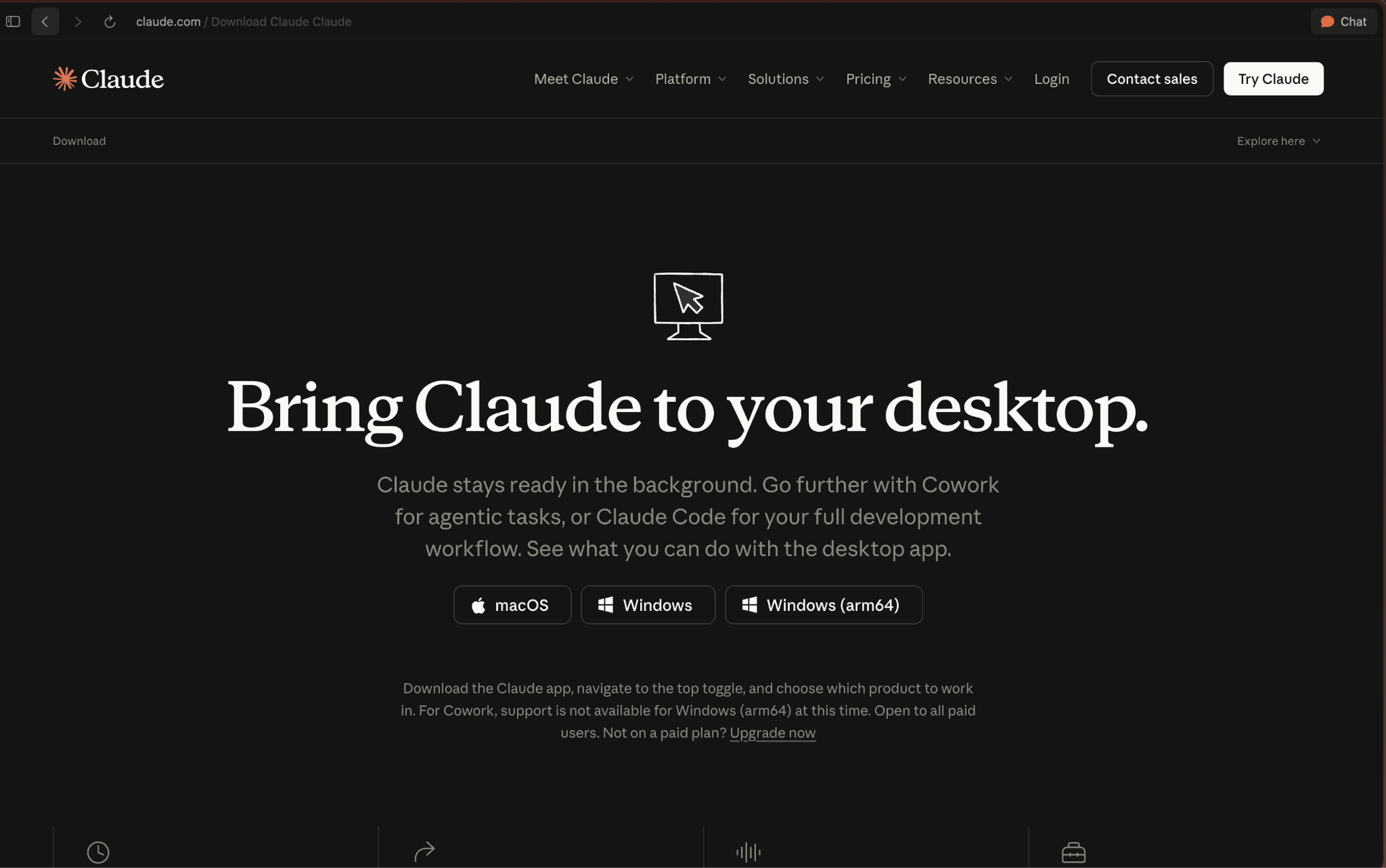
Step 1: Fire Up Cowork on Your Desktop (5 min)
- Go to claude.com/download. Download the desktop app.
- Sign in with your paid account.
- Open the app. Find the mode selector at the top. Click the Cowork tab.
You're in.
Step 2: Build a Safe Workspace for Cowork (5 min)
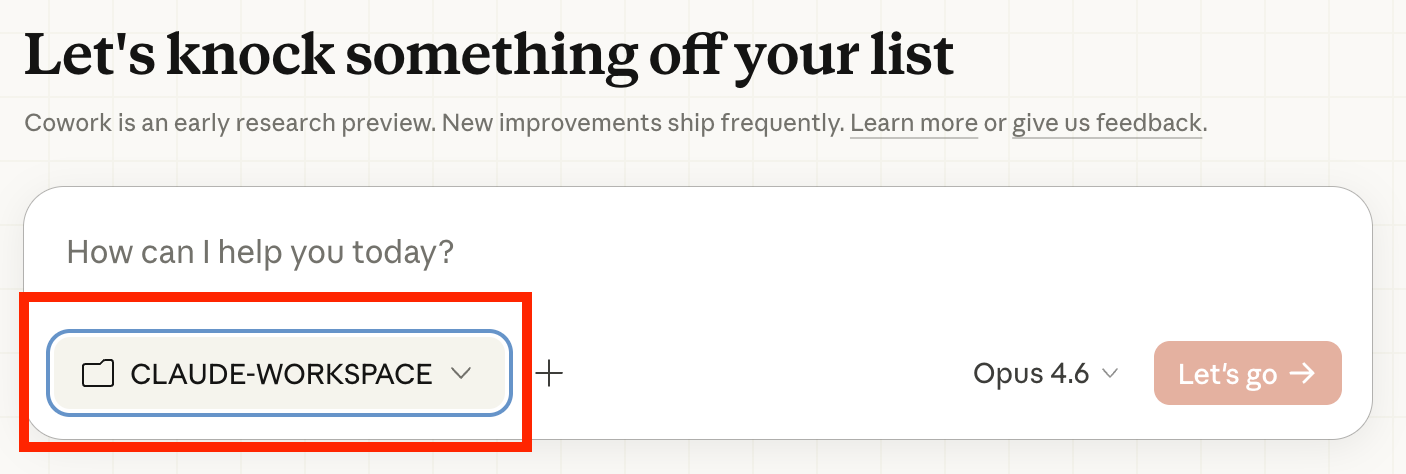
Cowork operates on a folder-permission model. You grant Claude access to a specific directory. It can read, edit, and create files inside it.
Don't point it at your entire Documents folder. Create a dedicated workspace:
~/Claude-Workspace/
├── context/ # Your standing context files
├── projects/ # Active project folders
│ ├── client-a/
│ └── client-b/
└── outputs/ # Where Claude delivers finished work
Why a dedicated folder? Cowork has real read/write/delete access to whatever you share. A dedicated workspace limits the blast radius if something goes sideways.
Back up first. Before your first real task, copy anything important. Cheap insurance.
Cross-device tip: Cowork doesn't sync between machines. Put your workspace in iCloud, Dropbox, or OneDrive so at least your files stay consistent across devices.
Click the folder icon in Cowork and select your workspace. Everything inside is now readable by Claude.
Step 3: Give Cowork the Context it Needs to Be You (10 min)
This is the highest-leverage step in this entire guide. Output quality is directly proportional to context quality.
Create these 3 files in your context/ folder as .md (Markdown): the most token-efficient format for Claude.
about-me.md
# About Me

## Role & Responsibilities
- [Your name, title, company]
- [What you do day-to-day]
- [Key stakeholders you work with]
- [What success looks like in your role]

## Domain Context
- [Industry specifics, key terminology, frameworks you use]
- [Tools and platforms in your workflow]

## Example Work
[Paste 1-2 real examples of output you're proud of.
This gives Claude a concrete quality reference.]
brand-voice.md
# Communication Style

## Tone
- [e.g., Direct and concise. No filler. Technical when needed.]
- [Phrases you naturally use]
- [Phrases that sound wrong coming from you]

## Writing Samples
[Paste 2-3 short examples of YOUR actual writing.
More useful than abstract descriptions of your style.]

## Anti-patterns
- [e.g., Never use "leverage" as a verb]
- [e.g., Don't start emails with "I hope this finds you well"]
How to create your brand-voice.md file - Pro Tip: I strongly recommend Ruben Hassid’s article I am just a text file. Ruben shows you how to make Claude capture who you truly are and use it in your daily tasks. Worth a shot!
working-preferences.md
# How I Want Claude to Work

## Process
- Always ask clarifying questions before starting non-trivial tasks
- Show me your plan before executing
- Save outputs as [.docx / .xlsx / .md — your preference]

## Output Style
- [Short vs. detailed]
- [Formatting conventions]
- [File naming conventions]

## Guardrails
- Never delete files without explicit confirmation
- Never modify files outside the designated output folder
- Flag assumptions before acting on them
The compounding effect: These files get better over time. After every session where output missed the mark, update the relevant file. Week after week, Claude gets more "you."
Prefer talking over typing? Use voice-to-text to dictate these files (like Wisprflow, a lightweight voice-to-text tool). But, the medium doesn't matter, getting context into text does.
Step 4: Teach Cowork How You Like to Work (5 min)
Instructions are standing directives that load automatically at the start of every Cowork session. Without them, Claude starts fresh every time with no memory of who you are.
Global Instructions
- Go to Settings > Cowork in the desktop app
- Click "Edit" next to Global Instructions
- Write your core preferences and save
Example:
I'm [Name], [Role] at [Company]. I work on [domain].
Communication: Direct, concise, no filler. Default to .md for drafts, .docx for final deliverables.
Process: Always ask clarifying questions before starting complex tasks. Show your plan. Explain assumptions.
Safety: Never delete files without my explicit approval. Flag any destructive actions before executing.
Keep it concise. Global instructions load every session and consume context window.
Folder Instructions
These activate when you select a specific folder. Perfect for client-specific context.
Example for projects/client-a/:
Client A is a Series B fintech startup.
Brand voice: professional but approachable.
Key contacts: [names].
Current priorities: [list].
Their terminology: "members" not "users", "platform" not "app".
Verification Prompt
After setting instructions, open a new session and type:
Before we start any work, tell me what you know about me, how I like to work, and any standing preferences you're aware of.
If the output reflects your context files and instructions accurately, you're set. If not, fix it now.
Step 5: Turn Cowork into a Specialist for Your Role (5 min)
Plugins are specialist packs, slash commands, and sub-agents designed for specific job functions.
In practice, that means things like :
- A Sales plugin that researches accounts and drafts outreach,
- A Data plugin that explores your CSVs and writes SQL,
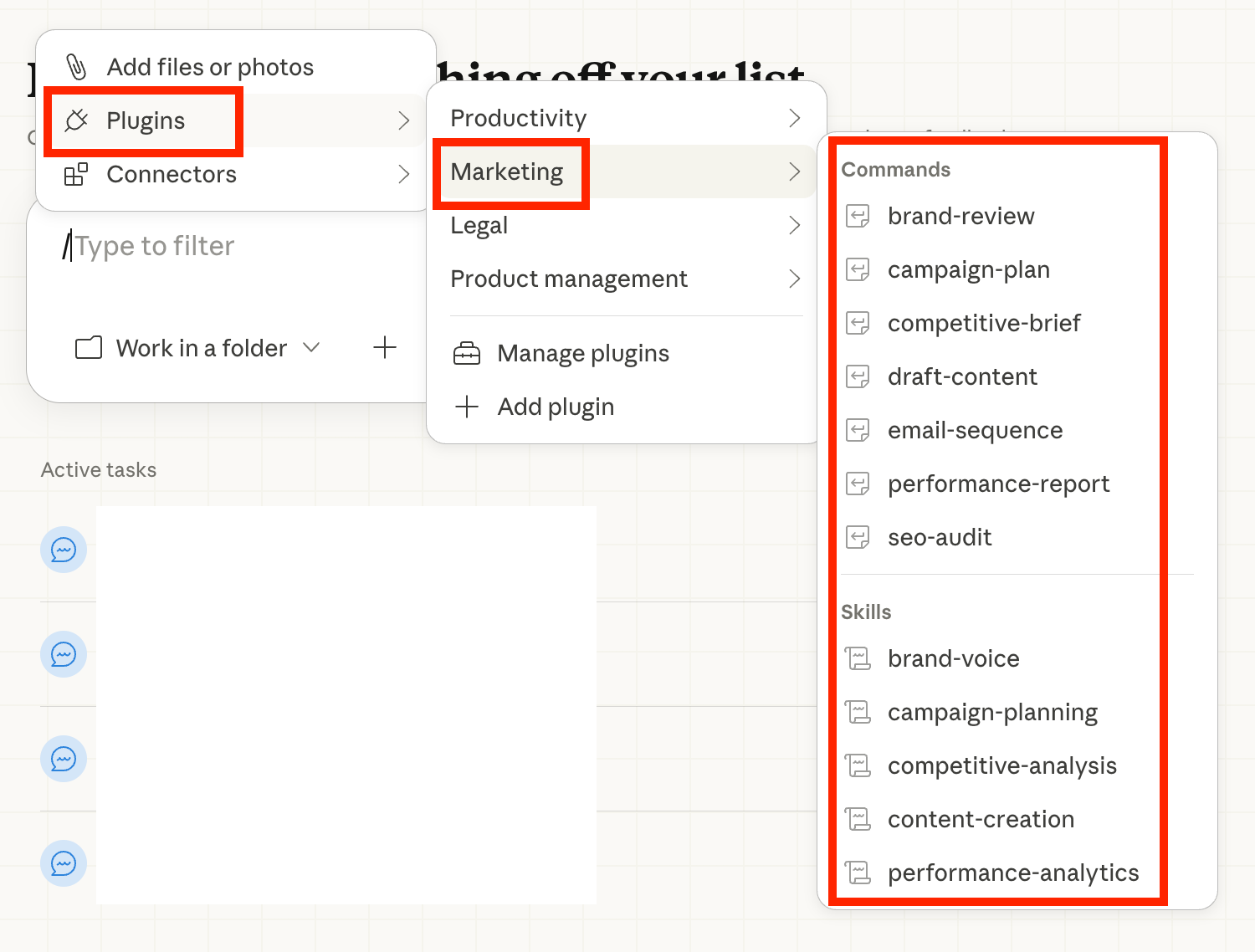
- Or a Marketing plugin that plans campaigns and drafts on-brand content from your brand-voice.md.
Without a plugin, Claude is a brilliant generalist. With one, it knows what a good output looks like for your function.
How to Install a Plugin in Claude Cowork
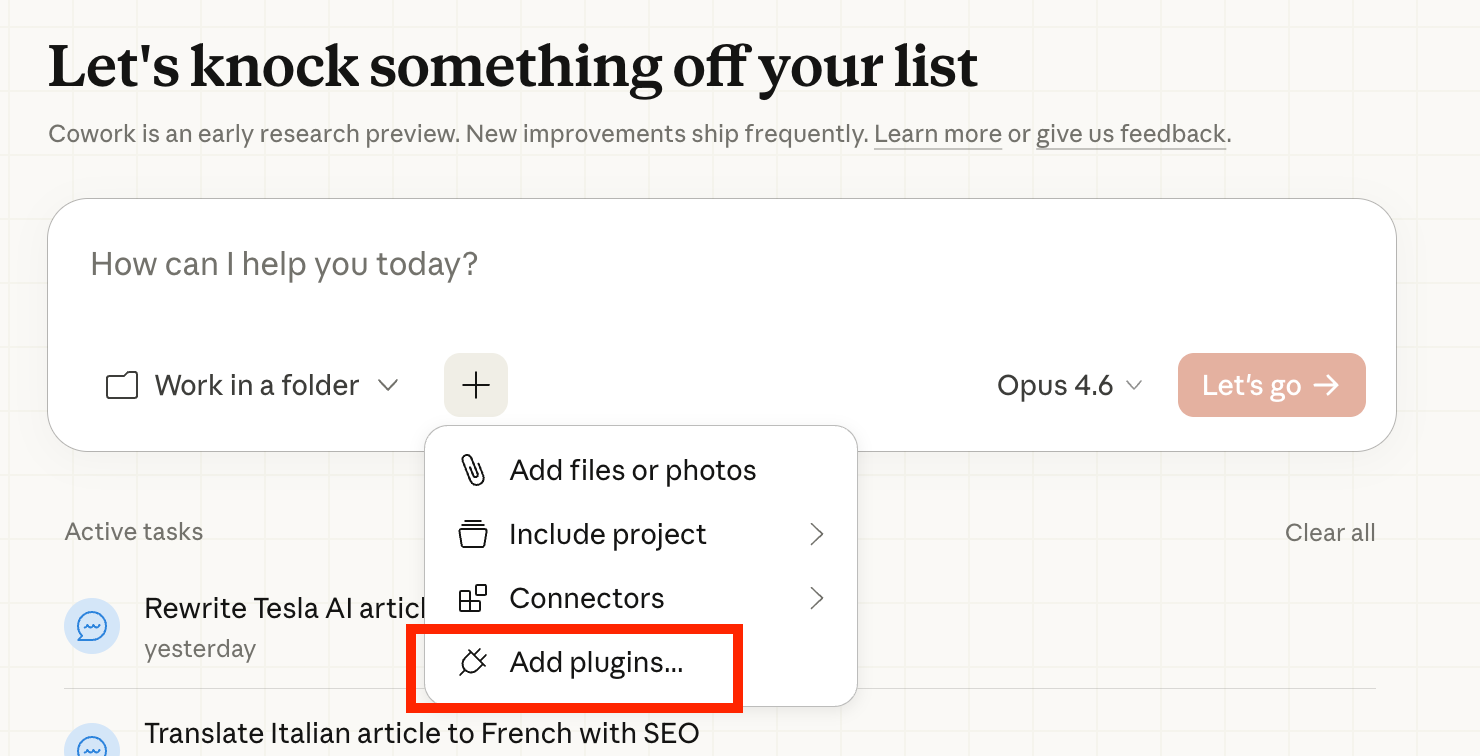
- In Cowork, click the "+" button in the chat bar → Add plugins (or browse at claude.com/plugins)
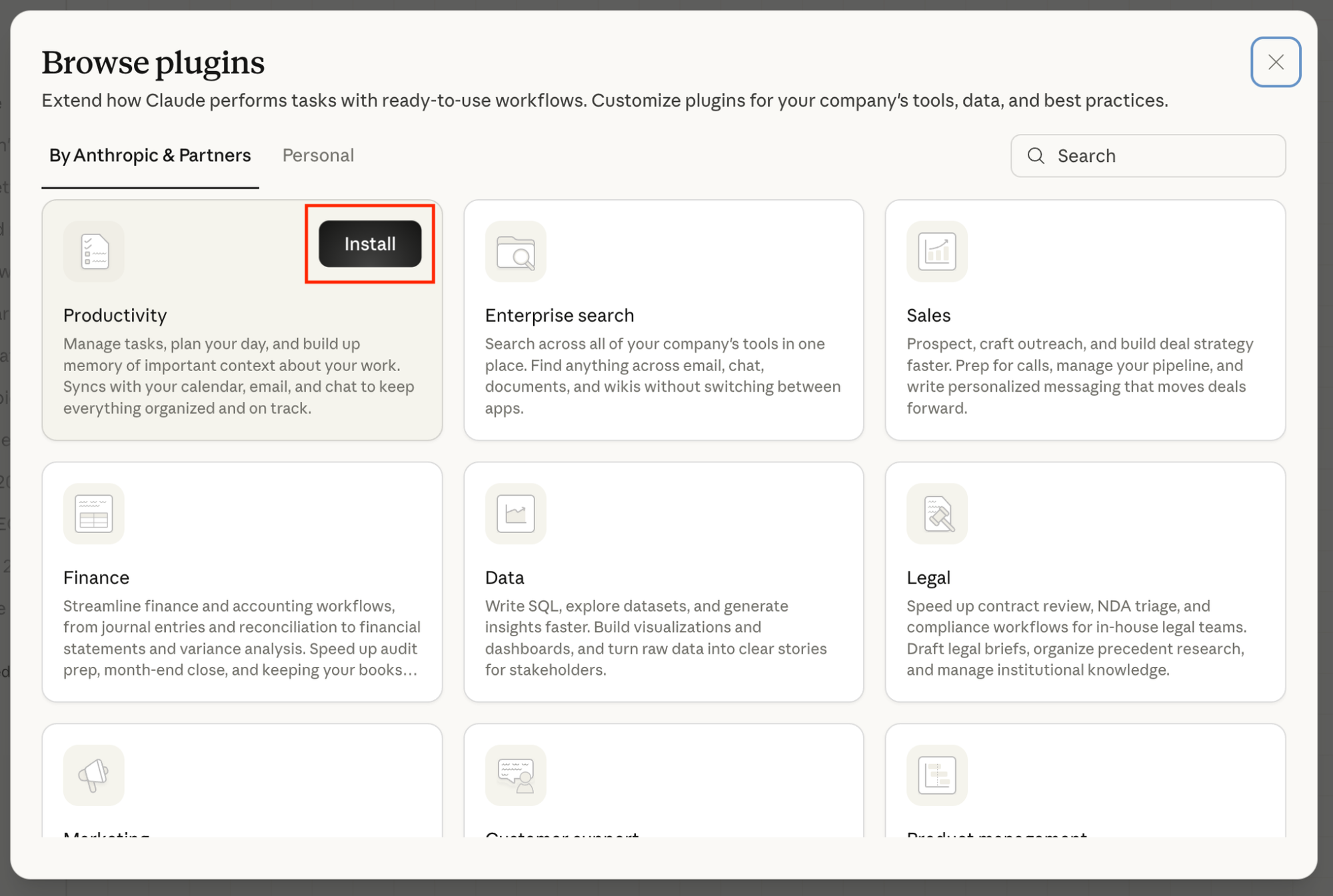
- Click Install on your chosen plugin
- Type / in any Cowork chat to see available slash commands → "Plugins" (in the screenshot below, the Marketing plugin gives Cowork a concrete sense of what good marketing work looks like for you, with ready-made commands for planning campaigns, drafting content, analysing performance…)
Available Plugins (as of March 2026)
- Productivity
- Marketing
- Sales
- Finance
- Data Analysis
- Legal
- Product Management
- Customer Support
- Enterprise Search
- Biology Research
- HR
- Engineering
- Design
- Operations
- Financial Analysis
- Investment Banking
- Equity Research
- Private Equity
- Wealth Management
- Brand Voice
Where to Start
Install Productivity (useful regardless of role) + one role-specific plugin that matches your job.
First Prompts after Installing
Productivity: /productivity:start
Review what I need to get done today and set up my task list.
Marketing: /marketing:draft-content
Write a LinkedIn post about [topic].
Match the voice from my brand-voice.md.
Target [audience].
Goal: [CTA].
Data: /data:explore
I've uploaded a CSV in this folder.
Summarize what's in it, flag anomalies, suggest 3 analyses worth running.
Customizing Plugins
Every plugin is just markdown files.
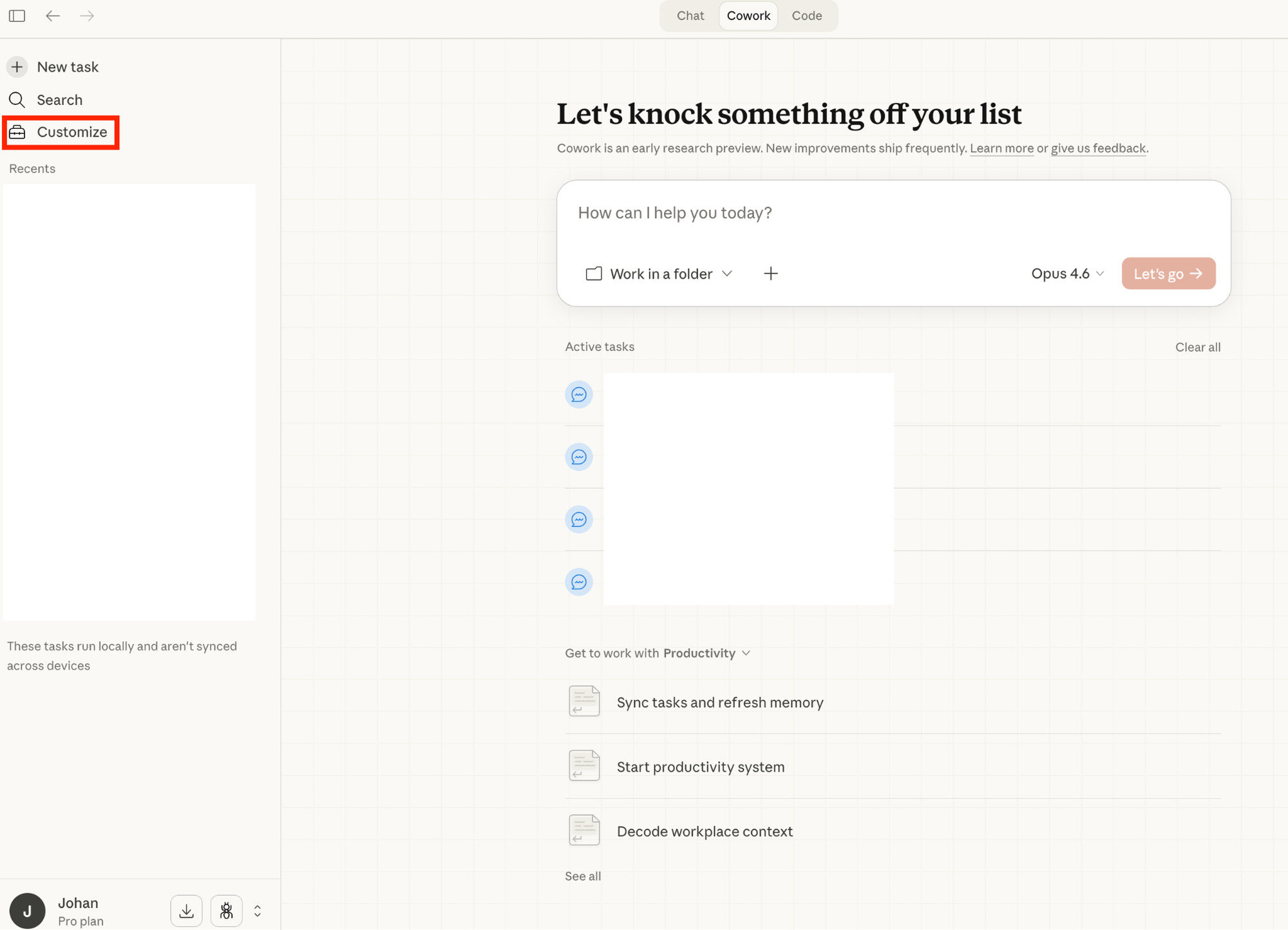
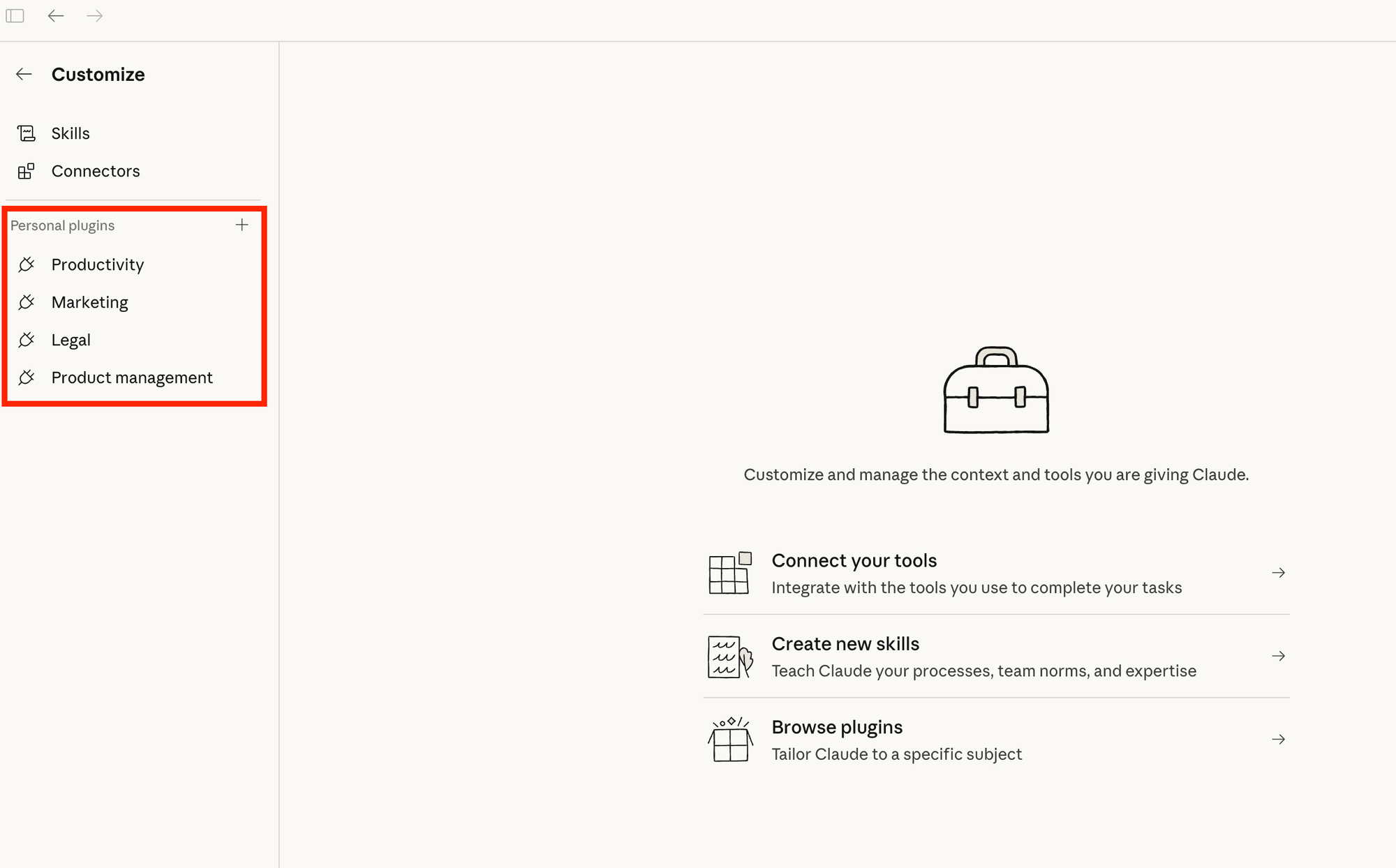
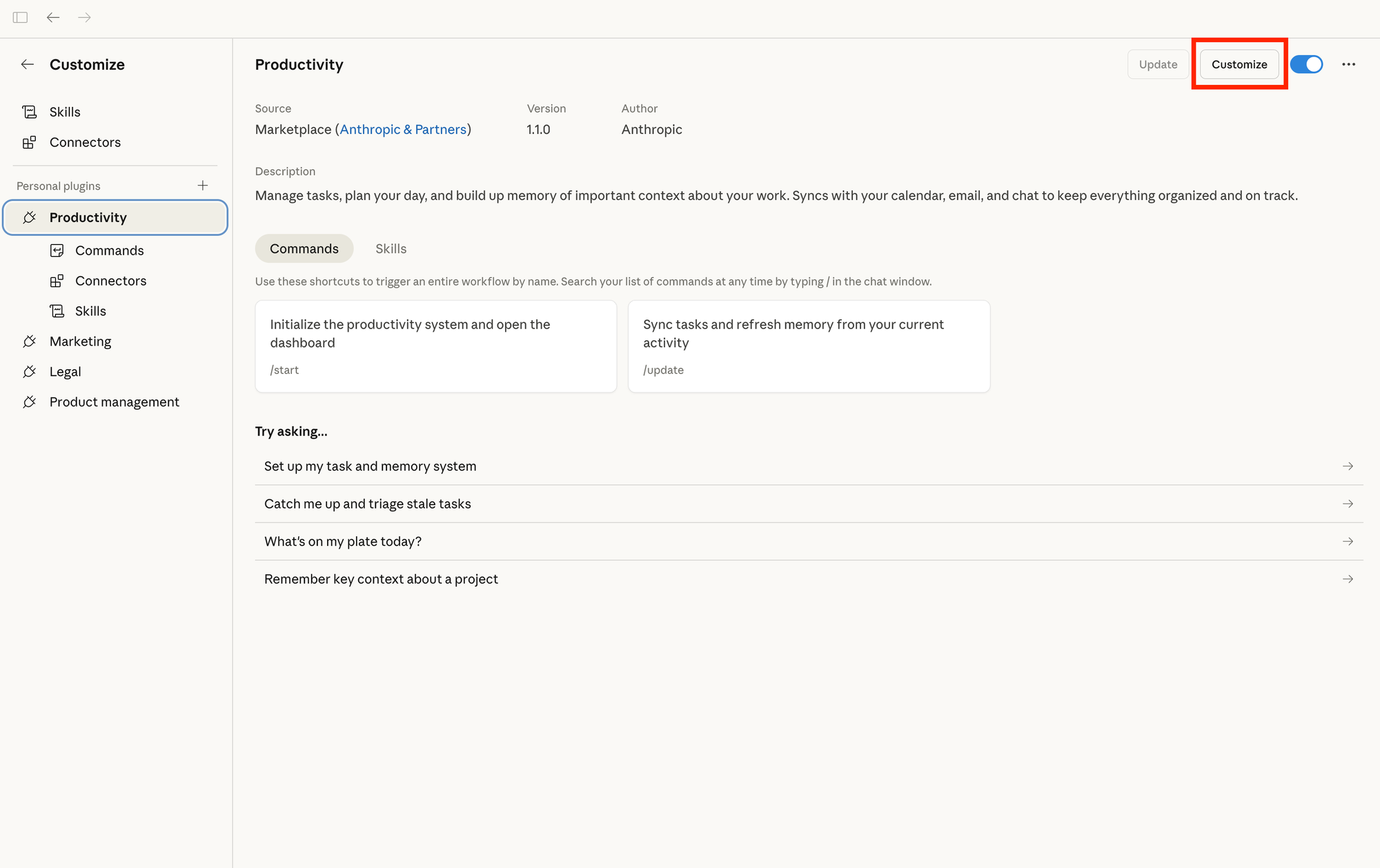
Click "Customize" on any installed plugin to adjust skills, commands, and connectors. The defaults are starting points. The real value comes from adding your company's context, terminology, and processes.
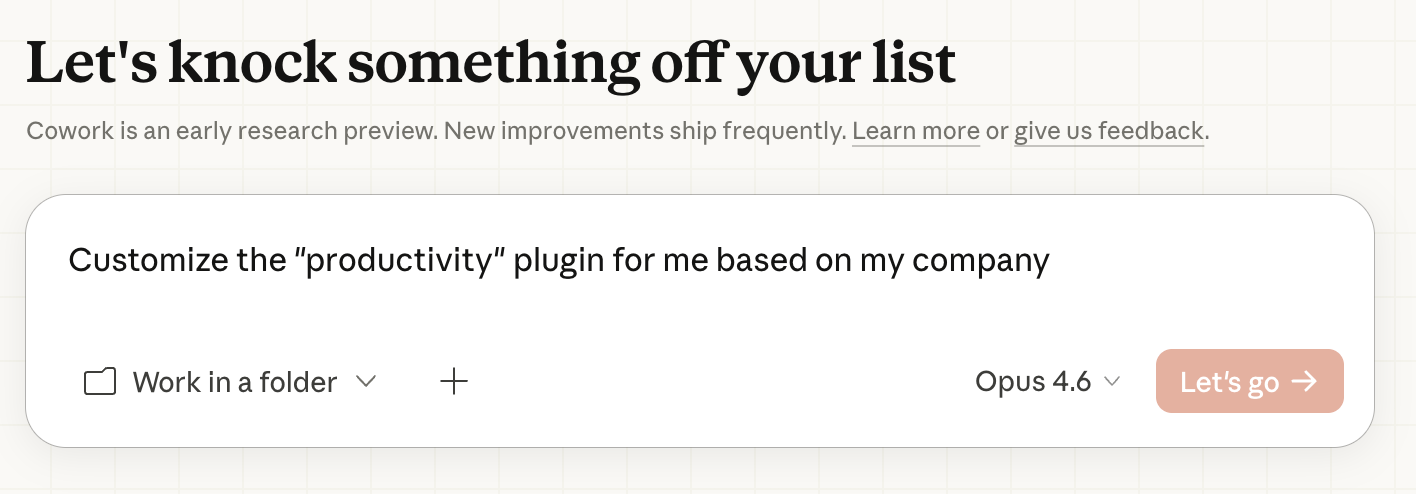
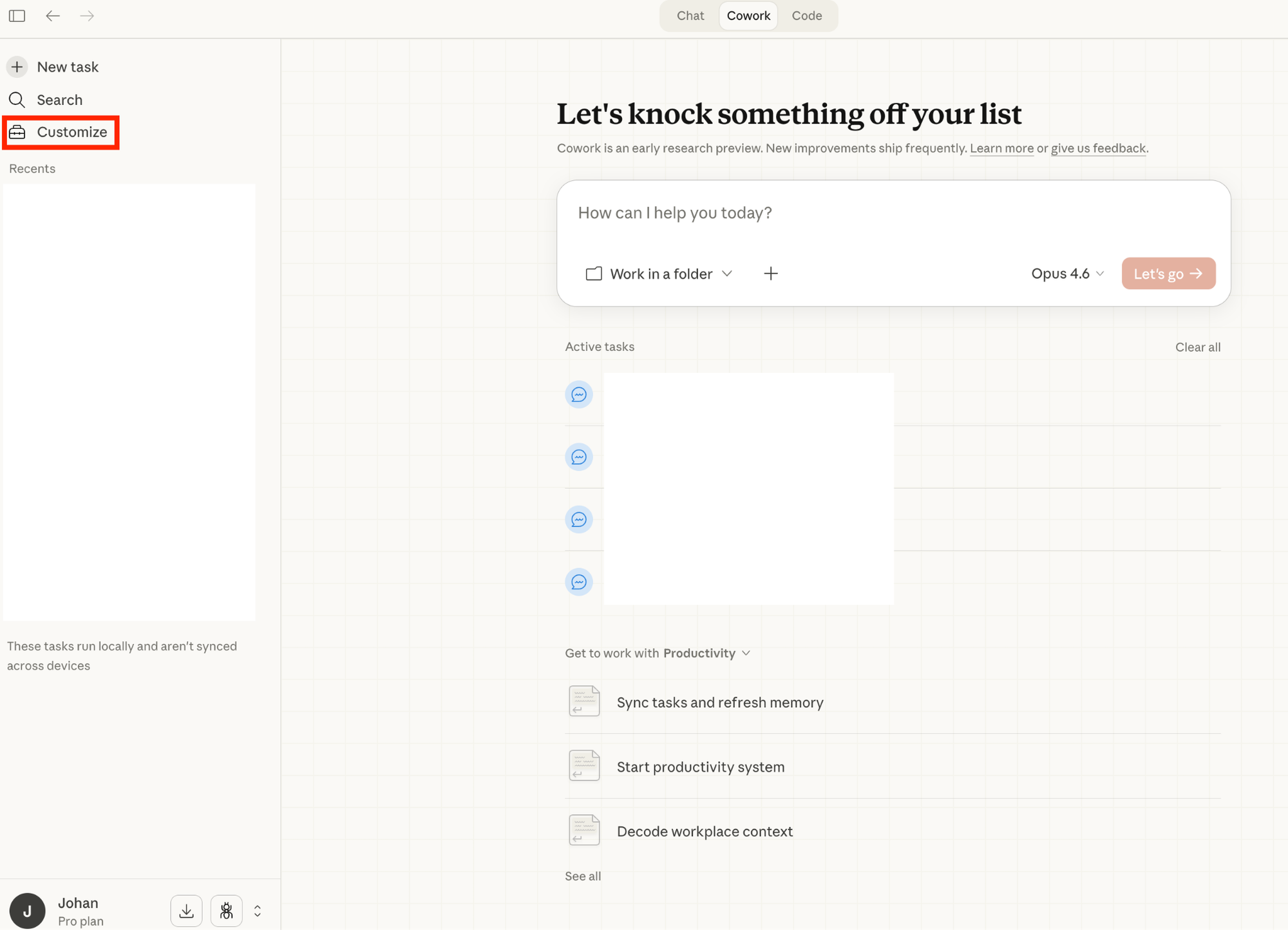
Here’s how to customize your plugins:
- Click “Customize” in your sidebar
- Pick your plugin in the sidebar & click “Customize”
- A new chat window opens which invites you to tell Claude Cowork how you want to tweak your plugin. Then “Let’s go”!
Step 6: Plug Cowork into the Rest of Your Stack (5 min)
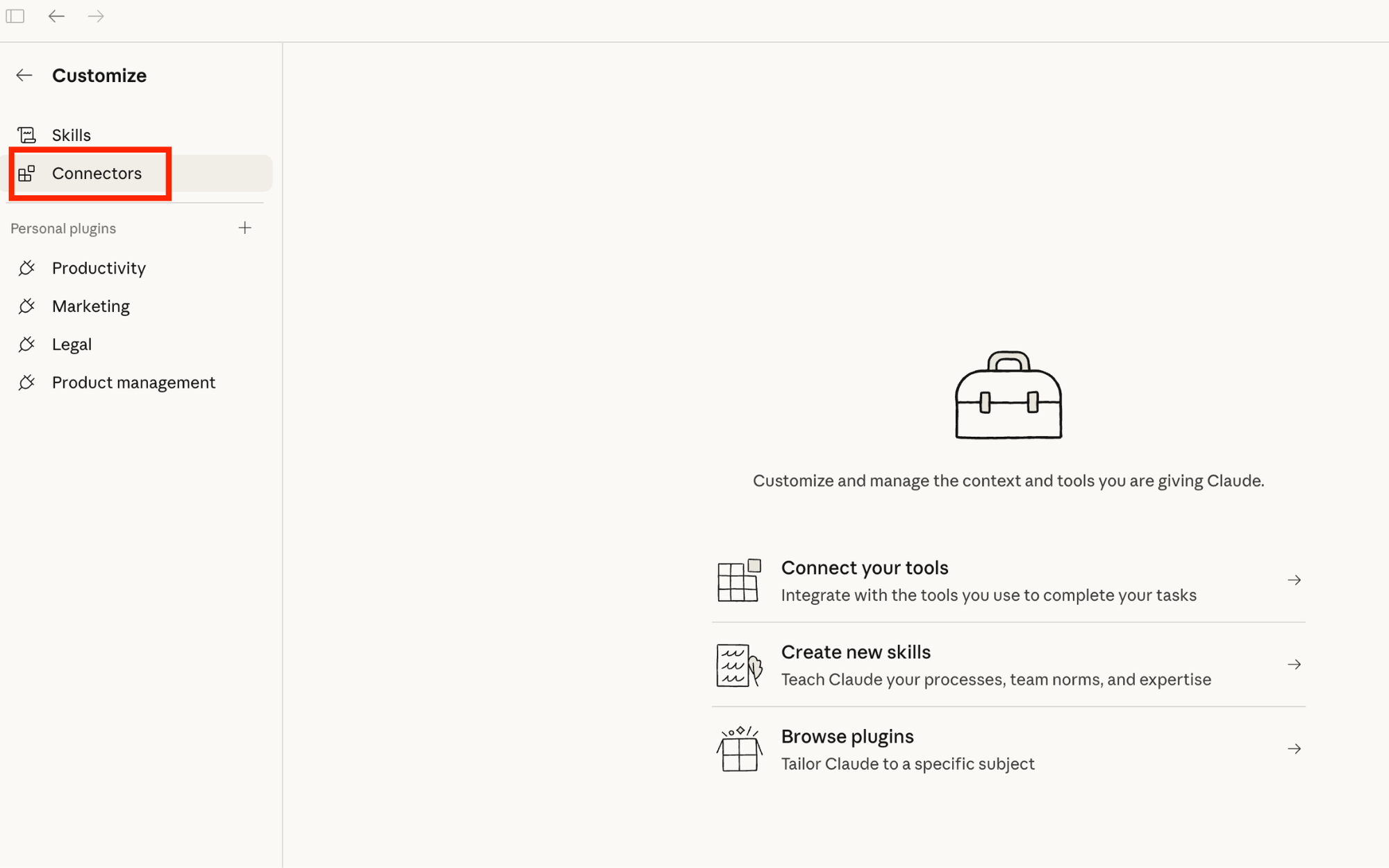
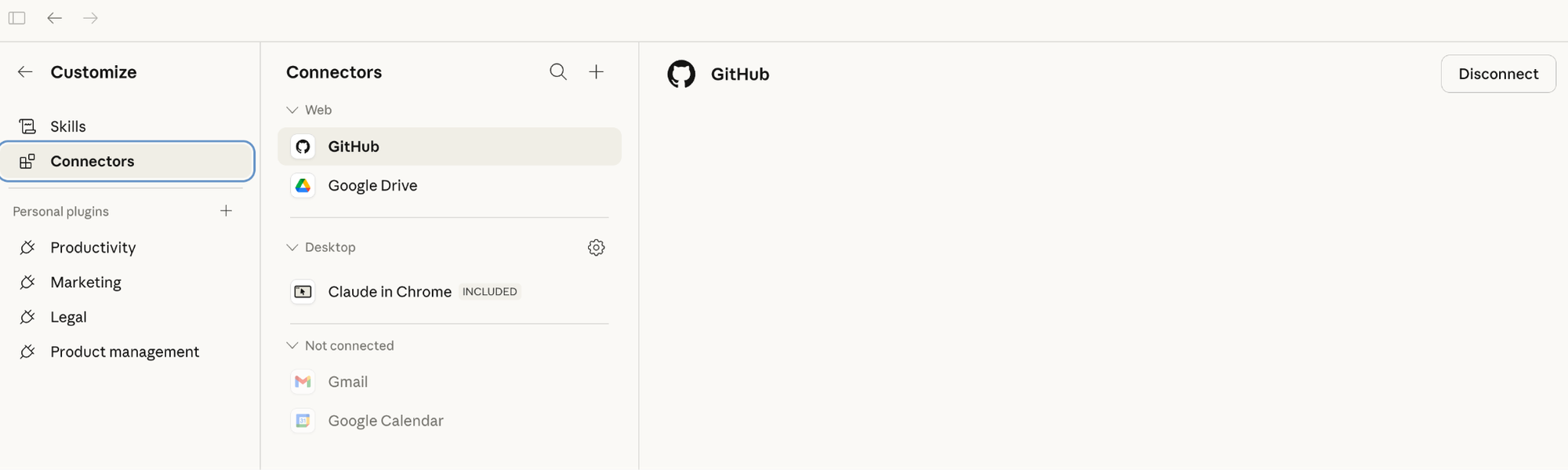
Connectors link Claude to external services. Once connected, Claude pulls live data mid-conversation. No more copy-pasting screenshots of Slack threads.
How to Connect
- Go to Customize > Connectors
- Browse integrations
- Click a connector → authenticate → done
Available Connectors (March 2026)
- Google suite: Drive, Gmail, Google Calendar
- Slack
- Notion
- Asana
- Linear
- Jira
- Monday
- ClickUp
- Figma
- Amplitude
- Pendo
- Intercom
- HubSpot
- Close
- Clay
- ZoomInfo
- Fireflies
- Microsoft 365
- Snowflake
- Databricks
- BigQuery
- Hex
- Box
- DocuSign
- FactSet
- Apollo
- Outreach
- WordPress
- Canva
- Ahrefs
- Klaviyo
- And more.
Free on all plans. The most underused feature in Cowork.
First Connector to Set Up
Whichever tool you use most. Slack, Google Drive, or Notion are the highest-leverage starting points.
First Prompt after Connecting Slack
Search my Slack messages from the last 7 days.
Summarize anything I need to follow up on.
Organize by urgency.
Your first real task
Pick something you already know how to do well. You need to be able to evaluate whether the output is correct.
I want to [DO X] so that [Y IS BETTER].
First, read all relevant files in this folder.
Before you start executing, ask me clarifying questions
so we can align on approach.
Only begin work once we've agreed on the plan.
Good starter tasks: organizing a messy folder, creating a formatted report from scattered notes, building a spreadsheet from raw data, drafting a document based on existing templates.
The universal task opener
This works for almost anything:
I want to [YOUR TASK] so that [WHAT GOOD LOOKS LIKE].
First, read all uploaded files completely before responding.
DO NOT start executing yet. Ask me clarifying questions
(use AskUserQuestion) to refine the approach.
Only begin work once we've aligned.
Where Cowork Falls Short
Cowork is the best “agentic” tool I’ve found for real knowledge work. But it still has sharp edges.
Here are the main constraints you should be aware of, and how to work around them.
Safety Defaults to Set Right Now
Add these to your global instructions if you haven't already:
Never delete any files without my explicit confirmation
Never modify files outside the designated output folder
Show me your plan before executing any multi-step task
If you're unsure about any instruction, ask rather than assume
Prompt injection risk: If Claude reads a malicious document or website, hidden instructions could alter its behavior. Limit web access to trusted sites. This is the primary attack vector.
The 30-Minute Setup Checklist
The POST-WORK Takeaway
Here's what most "AI guides" won't tell you:
The gap between people who use AI casually and people who make it a genuine productivity multiplier has almost nothing to do with prompt skills. It's about infrastructure.
Context files that get smarter every week. Instructions that persist. Plugins that specialize. Connectors that eliminate manual data transfer. A folder structure that keeps everything organized and safe.
That's a system. And systems compound.
The future of knowledge work is about humans who build systems around AI vs. humans who don't. And Cowork is the clearest tool available right now to build that system, without writing a single line of code.
Half an hour to set up. Every session after that starts better than the last.
Sources: @heynavtoor's Cowork setup guide, @witcheer's definitive Cowork guide, Anthropic's official documentation.
POST-WORK follows this shift from “chatting with AI” to building systems around it. From cute demos to real compounding leverage in your day-to-day work.
You want more pieces like this? Get the next issue in your inbox.